Connect a wallet
Click Connect wallet, pick your wallet, approve, then sign a sign-in message. No transaction, no fee: it proves the wallet is yours.
1. Pick your wallet
- Browser extension — Phantom, Solflare, Backpack, Coinbase, Trust, Bitget, Magic Eden, Exodus, Glow. Installed ones show first.
- WalletConnect — scan a QR code with any mobile wallet (Phantom, Trust, Tangem, Ledger Live, …).
- Ledger — plug in over USB, unlock it, open the Solana app.
- No extension detected? Install links are shown; on mobile, open Kurate inside your wallet’s own in-app browser instead.
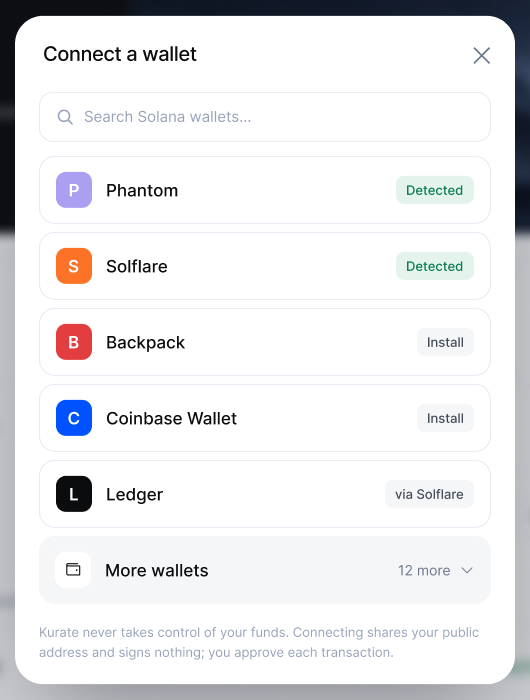
2. Approve in your wallet
Approving shares your public address. Your wallet then shows a sign-in message from Kurate: sign it to prove the wallet is yours. It is not a transaction: it costs nothing and moves no funds.
A Ledger over USB cannot sign this message: approving the connection is enough.
Check that the site address your wallet shows matches Kurate before you approve.
3. Connected
Your address shows in the app; you’re ready to lend or borrow.
Your session ends after 30 minutes away from Kurate, and after 12 hours in any case. Coming back then shows Connect wallet: approve and sign in again.
If you reject the connection or the sign-in message, nothing happens: you stay disconnected. Try again anytime.
Each market lives on one network. The wallet you connect must support it — see Supported networks.
Was this page helpful?